



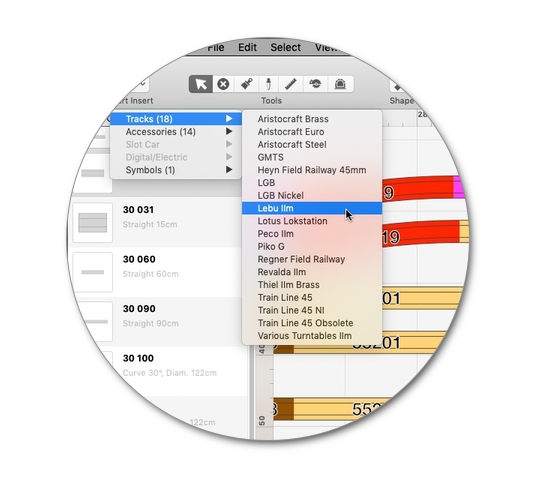
Über 290 Gleis- & Zubehör-Bibliotheken
Die mehr als 290 mitgelieferten Bibliotheken enthalten Gleise und Zubehör zahlreicher Hersteller in allen gängigen Maßstäben, von T (1:450) und Z (1:220) bis IIm/G (1:22,5).
Weitere Bibliotheken enthalten skalierbares Zubehör wie Gebäude, Bäume & Pflanzen, Signale und zusätzliche Symbole für Gleispläne, einsetzbar in allen Modellmaßstäben.
Eine Sammlung von Autorennbahnen und Digitalsystem-Komponenten ergänzen das Angebot. Neue Bibliotheken werden fortlaufend hinzugefügt und natürlich aktualisieren und erweitern wir bereits enthaltene Bibliotheken ständig.
Ebenen
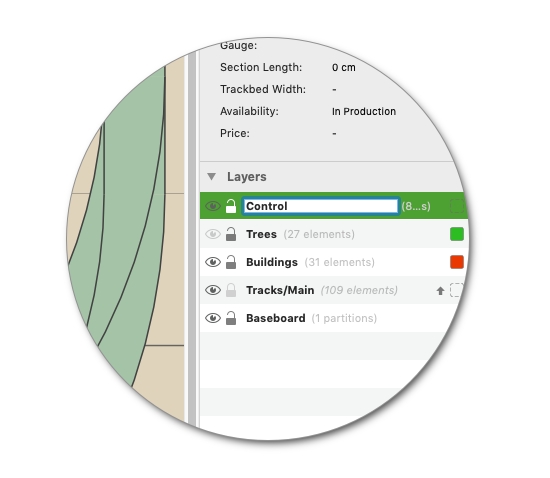
Gelungene Planung auf allen Ebenen: Das Ebenen-System in RailModeller Pro
ermöglicht es Ihnen, den Gleisplan in bis zu 99 Ebenen zu gliedern.
Von Grafikprogrammen bekannte Funktionalitäten wie das Sperren oder Ausblenden von Ebenen erleichtern Ihnen die Arbeit an Ihren umfangreichen Anlagenplänen.
Die Darstellungs-Reihenfolge ändern Sie ganz einfach mittels Drag&Drop -
einfacher geht es kaum!
Assistenten
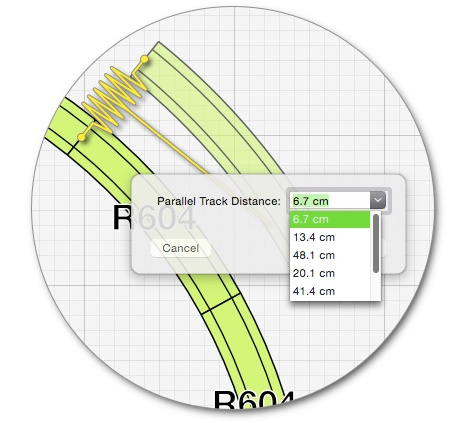
Bei Arbeitsschritten wie dem Einfügen von Parallel-Gleisen, dem Schließen von Gleislücken oder dem Erstellen von Gleiswendeln unterstützen Sie die integrierten Assistenten.
Direkt erreichbar über Toolbar und Tastaturkürzel sind die Assistenten jederzeit nur einen Klick entfernt!
Weitere Funktionen unterstützen Sie etwa bei der Optimierung der Zeichenfläche, dem Aufräumen des Gleisplans oder dem automatischen Einfärben von Elementen nach Artikelnummer, Elementtyp, Ebene, etc.
In die Höhe
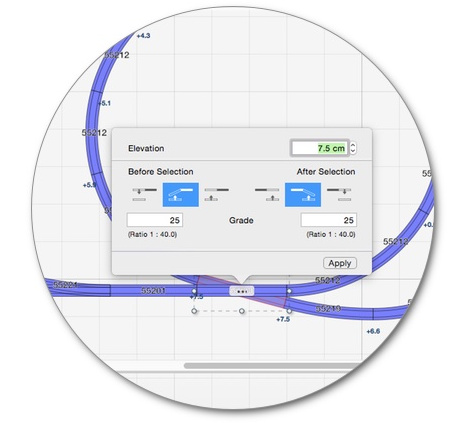
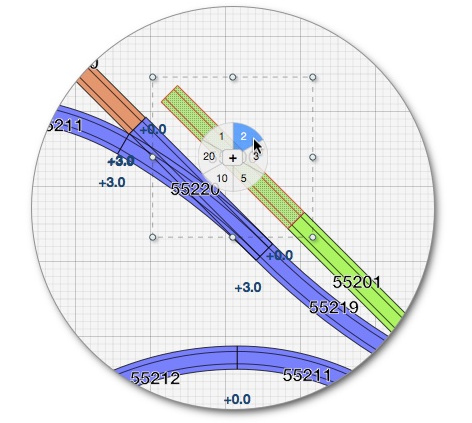
Erstellen Sie automatisch berechnete Steigungen zu beliebigen Punkten im Gleisplan, oder bestimmen Sie die Steigung für einen Streckenabschnitt einfach mittels Start- und Ziel-Höhe, heben Sie Gleissegmente an oder senken sie ab -
zahlreiche Bearbeitungsmöglichkeiten unterstützen Sie bei der Ausarbeitung Ihrer Anlage.
Der 2.5D Darstellungs-Modus mit kombinierter Drauf-Sicht und Anzeige von Gleishöhen verschafft Ihnen dabei einen schnellen Überblick über das Höhenprofil Ihrer Anlage.
Stücklisten
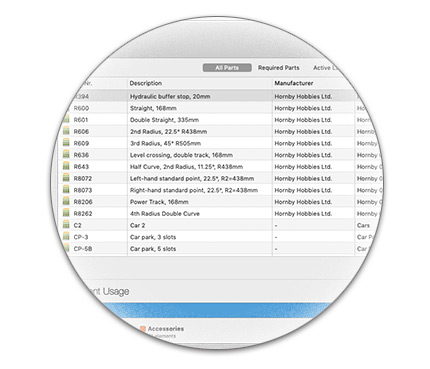
RailModeller Pro erstellt automatisch eine Stückliste mit im Gleisplan verwendeten Gleisen und Zubehör zur Übersicht über benötigtes Material und Kosten.
Die Preise der Elemente lassen sich direkt in der Liste bearbeiten und werden in einer globalen Preisdatenbank erfasst. Damit werden die Preise identischer Elemente in allen Gleisplänen automatisch abgeglichen.
Eine Statistik für den aktuellen Gleisplan mit genutzten Element-Typen und
der Benutzung einzelner Bibliotheken rundet die Funktionalität ab.
Drucken in jedem Maßstab
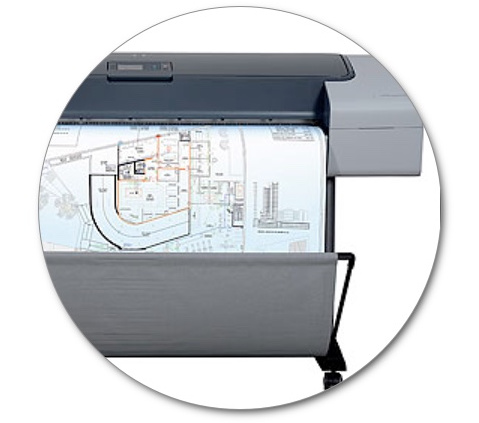
Drucken Sie Ihre Gleispläne in jedem beliebigen Format aus: Von der kompakten Übersicht auf einer DIN-A-4 Seite bis hin zum originalgetreuen Ausdruck im Maßstab 1:1, den Sie direkt als Bauvorlage weiterverwenden können.
Nutzen Sie die "PDF Druck" Funktion in macOS, um PDF-Dokumente in beliebigen Größen zu erstellen, oder nutzen Sie die "1:1 PDF-Export" Funktion um maßstabsgetreue Dokumente in einem einzigen Schritt zu erzeugen -
ideal für die direkte Weitergabe an Copy-Shops oder Druckereien.
Bestands-Verwaltung
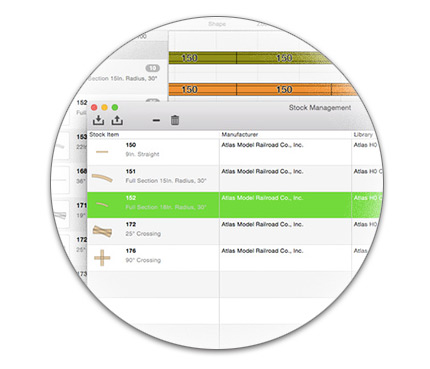
Das vorhandene Gleis-Material direkt im Programm verwalten: Im Katalog kann optional die Anzahl verbleibender Gleise angezeigt werden oder in der Stückliste nur fehlende Gleise, die noch zu besorgen sind.
Der Bestand kann direkt über die App bearbeitet oder komfortabel über den CSV-Import/-Export ausgetauscht werden. Über die Schnittstelle ist eine Bearbeitung in vielen externen Applikationen wie zum Beispiel Numbers, Excel oder OpenOffice möglich.
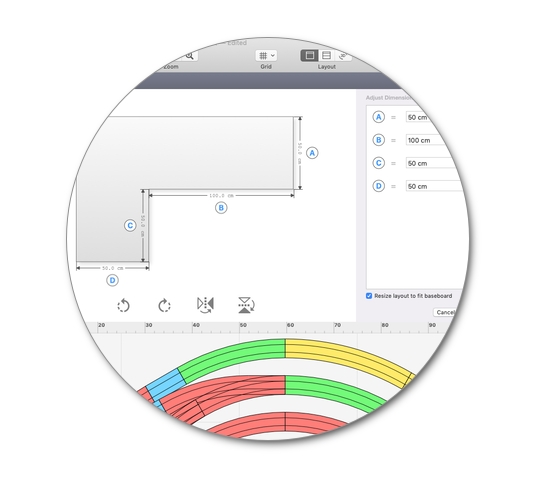
Grundplatten
Mit Grundplatten kann der Umriß einer Anlage mit den Abmessungen der einzelnen Kanten dargestellt werden. Der Grundplatten-Assistent bietet die am Häufigsten benutzten Anlagenformen zur Auswahl an, so dass mit wenigen Klicks Grundplatten in den typischen Formen - wie L-, U- oder Rechteck-Form - benutzt werden können.
Individuelle Bearbeitungswerkzeuge ermöglichen beliebige Formen, gerade oder runde Kanten und natürlich beliebige Farben der Grundplatten.
Gleisplan Community
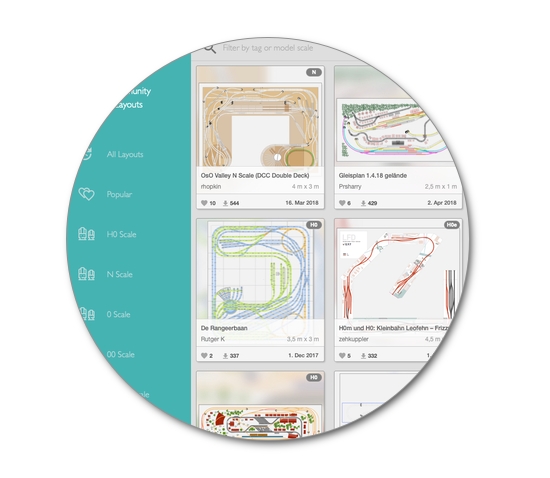
Die Sammlung von Gleisplänen erstellt von unseren Anwendern ermöglicht es mit wenigen Klicks direkt aus der App heraus Inspiration in hunderten von Plänen zu finden. Automatische Vorschläge zu beliebten oder verwandten Gleisplänen erleichtern das Auffinden der passendsten Kreationen, zudem kann nach Maßstab oder Hersteller gefiltert werden.
Ebenso einfach können eigene Pläne mit anderen Anwendern geteilt werden.
Und vieles mehr..
• Erstellen von Gleisplänen mit bis zu 10km Seitenlänge
• Automatische Anpassung der Zeichenfläche an die Gleisplan-Größe (optional)
• Konfigurierbare Zeichenstile für Gleise, Beschriftungen und Gleisplan
• Funktionen zum Markieren von Tunnelstrecken
• Benutzerdefinierte Formen und Text zum Ausgestalten des Plans
• Praktische Hilfsfunktionen direkt im Gleisplan wie z.B. "Anfügen Wiederholen"
• Ausgefeilte Funktionen zur gezielten Auswahl von Elementen
• Interaktive Aufräumhilfen für fertige Gleispläne
• Assistent zum automatischen Einfärben nach Typ, Artikelnummer, Radius, oder Ebene
• Suchen nach Elementen im gesamten Gleiskatalog und im aktiven Gleisplan
• Optimale Darstellung im Dunkelmodus von macOS
• Einbinden von Bilddateien (PNG, JPEG, PSD, GIF, TIFF, PDF, ..)
• Export in zahlreiche Grafik-Formate
• Teilen als Bild nach Twitter, Facebook, Mail, Messages, .. mit wenigen Mausklicks
• Export des Gleisplans für JMRI (digitale Modellbahnsteuerung)
• Frei anpassbare Tastaturkürzel für alle Menübefehle
• Ein integriertes, deutschsprachiges Online-Handbuch
• Kostenloser, deutschsprachiger E-Mail Support